
Quick Answer
To present confidently on camera, look at the camera lens for eye contact, not at faces on screen— when you look at faces, your eyes point downward on the other person’s screen, reading as disengagement. Position your camera at eye level rather than looking up your nose, light your face from the front rather than behind, and close all notifications so nothing interrupts your screen share. Slow your speech by around 20%, since audio compression and video latency mean audiences process virtual speech more slowly than in-person speech. Exaggerate facial expressions by about 30% to compensate for how camera compression and small screens flatten your natural expressiveness. Around 70% of remote workers say virtual presentations feel more anxiety-provoking than in-person ones, often because technical failure is a distinct source of dread — join calls 10 minutes early to test your setup and reduce that specific anxiety before you even start speaking.
Virtual Presentation Tips: How to Present Confidently on Camera
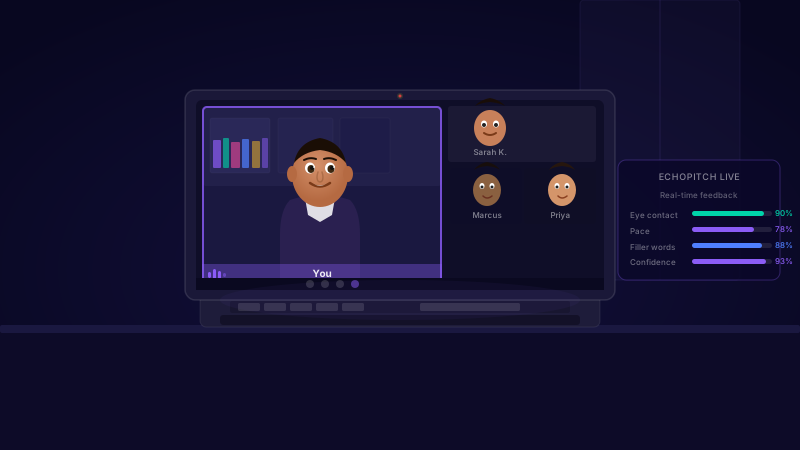
Presenting on Zoom or Teams is a genuinely different skill from in-person presenting. Here is what actually makes the difference.
MBA, Bayes Business School · Founder, Cavefish · May 2026
TL;DR: Virtual Presentation Essentials
- Camera position: Eye level, not looking up at your nose
- Eye contact: Look at the camera lens, not at faces on screen
- Lighting: Light source in front of you, not behind
- Pace: Slow down 20% — audio compression affects comprehension
- Expression: Exaggerate by 30% — camera flattens facial expression
- Tech anxiety: Join 10 mins early, test everything, have backups
of remote workers say virtual presentations feel more anxiety-provoking than in-person. Eye contact with the camera is the most important skill to practise.
Why Virtual Presenting Feels Harder
Virtual presentations strip away most of the feedback you use to calibrate your delivery. In person, you can see people nodding, leaning forward, or looking confused. On Zoom, you see a grid of faces or blank rectangles. You are performing without an audience in any meaningful sense — which is deeply disorienting for a social species that evolved to read the room.
This is also why virtual presentations feel more tiring than equivalent in-person ones — you are working harder to fill the feedback vacuum. The good news is these are learnable skills with specific techniques.
Setup: The Foundation Everything Else Depends On
Camera at eye level
Laptop screens are below eye level, giving everyone a view up your nose. Stack books under your laptop until the camera is level with your eyes. This simple fix has more impact on how you are perceived than almost anything else.
Light from the front
Natural light behind you = silhouette. Light source should be in front of you or to the side. A ring light or desk lamp facing you works. Avoid mixing light temperatures (warm room light + cool daylight = uneven skin tones).
Clean, uncluttered background
A bookshelf or plain wall. Bedroom doors and piles of clothes are distracting. If your space is difficult, use a subtle virtual background with a plain office image — not a beach or space scene.
Wired audio or quality headset
Poor audio is the fastest route to losing an audience. Built-in laptop microphones pick up room echo and keyboard noise. A £30 wired headset is a meaningful upgrade. AirPods Pro are genuinely good for calls.
Close all notifications
Not just Do Not Disturb. Quit Slack, close email, turn off phone. Notification sounds leak into screen share audio and are deeply unprofessional.
Delivery: What Actually Works on Camera
Look at the camera, not the screen
This is the single most impactful virtual presenting skill and the one most people never master. When you look at faces on screen, your eyes are directed downward on the other person's display — they see you looking away. Eye contact on camera means looking at the camera lens. Put a small sticky arrow next to the camera as a reminder. Practice until it is automatic.
Slow down by 20%
Audio compression, slight latency, and the cognitive load of video calls mean audiences process virtual speech more slowly. Slow your natural pace by around 20%. This also reduces the nervous fast-talking that anxiety produces.
Exaggerate your facial expression slightly
Camera compression and small screen sizes flatten facial expression. If you look enthusiastic in real life, you look neutral on camera. Up your expressiveness by about 30% — enough to come across as engaged and energetic on the other side.
Use gestures within the camera frame
On camera, gestures that happen outside the frame are invisible. Keep gestures chest-height and within the edges of your framing so they land. Big gestures that disappear from frame look odd and distracted.
Managing Nerves Specifically for Virtual Presentations
Virtual presentations have a unique anxiety source: the technical setup. Fear of tech failure is one of the most common triggers. Address it by:
- Joining the call 10 minutes early to test audio and video
- Having the presentation link or file open before the call starts
- Knowing exactly how to share your screen before you need to
- Having a backup plan (phone hotspot if WiFi drops)
Once the tech anxiety is resolved, the remaining nerves are standard presentation anxiety — and the techniques in our other guides apply equally well.
Practise on Camera Before the Real Thing
Virtual presenting is a camera performance and camera performance requires camera practice. Recording yourself and reviewing the footage — or using EchoPitch to get instant feedback on confidence, pace and delivery — is dramatically more useful than mentally rehearsing, because it shows you exactly what the audience sees. Most people are surprised by how different their virtual presence looks from how they feel it from the inside.
- Zoom fatigue
- The disproportionate tiredness associated with video calls, caused by the cognitive effort of processing non-verbal cues without the usual environmental richness of in-person interaction.
- Camera eye contact
- Looking directly at the camera lens (not at faces on screen) during a video call. Creates the appearance of direct eye contact for the remote audience.
Practice Your Camera Presence
EchoPitch records you presenting and gives instant AI feedback on your confidence, pace, and delivery. See exactly what your virtual audience sees.
Try EchoPitch Free →